Whisparr Docker Setup Guide for Beginners (Step by Step)
Deploy Whisparr as a container in minutes: image choice, volumes, ports and first-run configuration.
Read guide →Fix the most common Whisparr problems — a practical, beginner-friendly walkthrough.
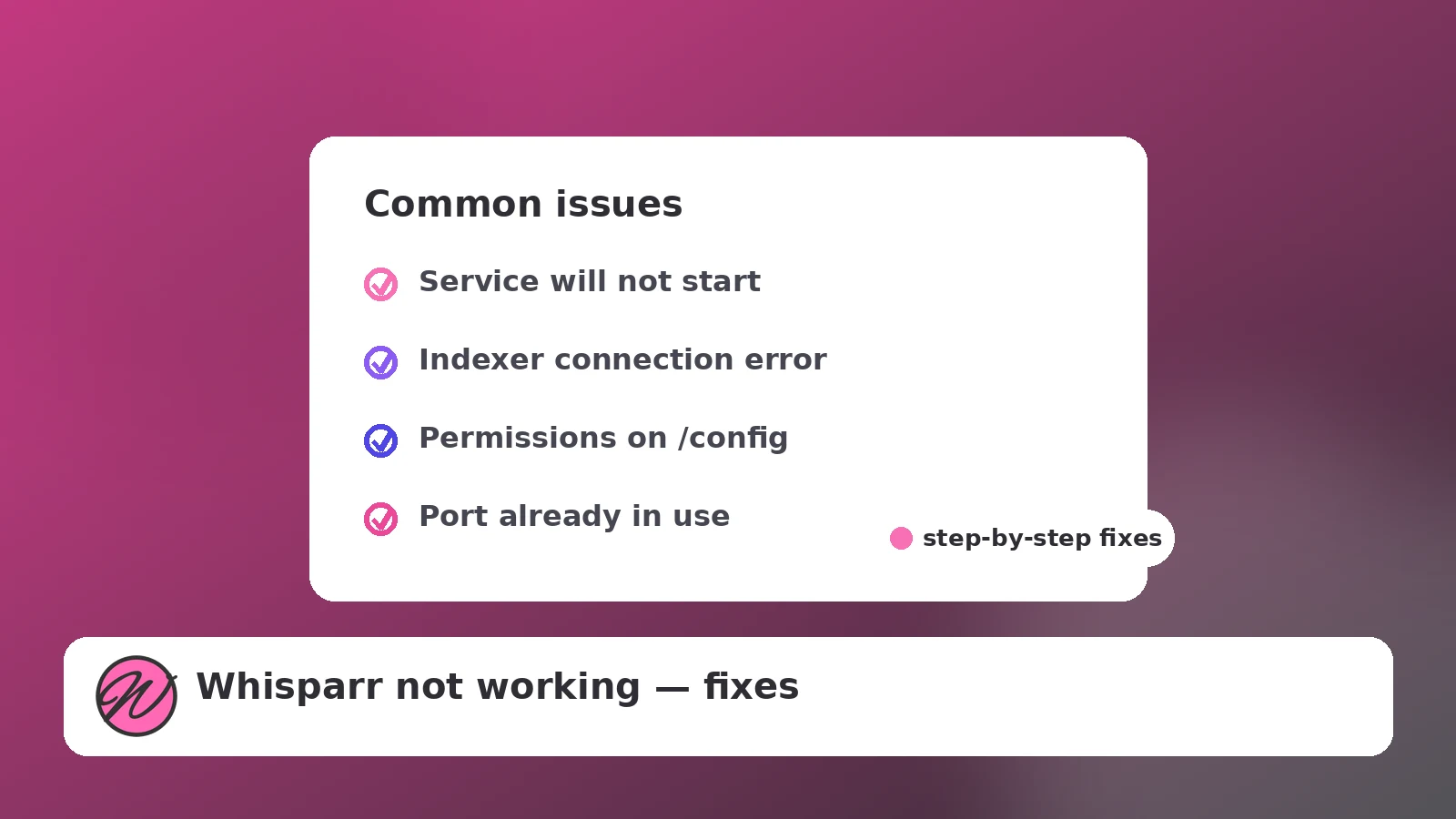
Almost every “Whisparr is broken” report falls into one of five buckets: the UI will not load, indexers fail, the queue is stuck, downloads never import, or the logs are full of permission errors. Work through this page top to bottom — each section starts with the fastest check and ends with the deeper fix.
Fast check: is the process or container actually running? For Docker, docker ps should list it; if it restarts in a loop, read docker logs whisparr — the last lines almost always name the cause.
Common causes:
localhost.Open Settings → Indexers and press Test on each one. Failures usually mean an expired or wrong API key, a changed indexer URL, or rate limiting after too many rapid searches. If Prowlarr manages your indexers, fix the entry in Prowlarr and let it re-sync rather than editing Whisparr directly. Persistent timeouts from inside a container can also indicate a DNS problem in Docker — restarting the container or setting an explicit DNS server usually resolves it.
Check the Activity queue's status column. If items show as queued but the download client shows nothing, re-test the download client connection in Settings — a changed password or port silently breaks the hand-off. If the client is downloading but Whisparr shows no progress, the client's category for Whisparr is likely missing or renamed.
This is the classic path-mismatch problem. Whisparr must be able to reach the completed files at the same path meaning it expects:
/data mapping. If the client saves to /downloads while Whisparr looks in /data/downloads, imports fail even though the files exist.In Docker and on NAS platforms, the container runs as the PUID/PGID you provided. Those IDs must own the config folder and have write access to the media folders. Verify with ls -ln on the host and correct either the folder ownership or the environment values. On Synology and TrueNAS, redo the shared-folder / ACL permissions for the exact user those IDs belong to.
System → Logs inside the UI (or the container logs) tells you more than any forum thread. Set the log level to Debug temporarily, reproduce the problem once, and read the first error line — not the last. The first error is the cause; the rest are consequences.
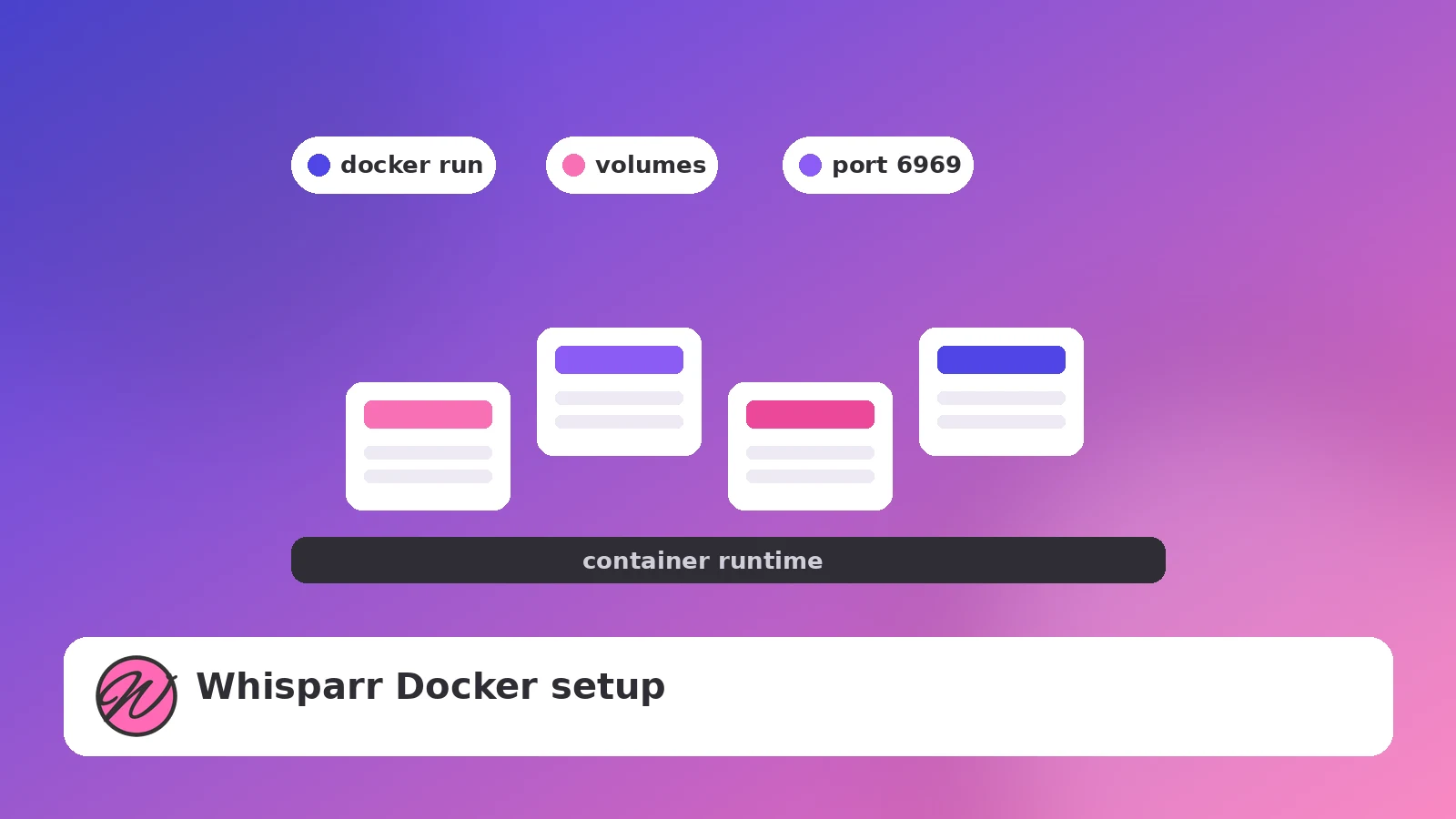
Deploy Whisparr as a container in minutes: image choice, volumes, ports and first-run configuration.
Read guide →
The post-install settings that decide whether your library stays tidy or turns into churn.
Read guide →
A short checklist that keeps repacks, fake installers and bad habits away from your setup.
Read guide →